How to Block In-app Browsers on iPhones and iPads
In-app browsers are one of those features parents might not consider when setting up parental controls on their child's iPhone, but it is possible to limit this feature so the device is effectively monitored.


Many apps (especially social media) have an in-app browsing feature that allows users to open and view links. If you’re setting up a blocking system as a parent or accountability partner, this can actually present a sort of loophole that allows content to be accessed in a way that is difficult to block or monitor.
Unfortunately, it’s not possible to fully disable these kinds of in-app browsers using iOS settings or Screen Time, so you often need to consider alternatives that use a different type of content blocking or monitoring approach.
Choosing a Blocking Approach for In-App Browsers
Generally, parents and accountability partners have much more control over Safari browsing using Screen Time, however, this doesn’t always translate well to in-app browsers because there are two types:
- Some in-app browsers behave like a “pop-up”. You’ll tap on a link in an app, and a miniature version of Safari is overlaid on top of the app view.
- Other in-app browsers are fully managed by and built into the app. You might see these most commonly on social media apps, like TikTok, Instagram, or Facebook.
Here's an example of a "pop-up" browser in Apple Maps:
Someone might make a post on social media with an embedded link, and this often opens a fully managed app window instead:
The problem is that fully managed in-app browsers, like the ones you might see in the TikTok app, can’t be monitored or managed by Screen Time, and this is a huge gap that many parents and accountability partners are unaware of. The only way to completely disable these fully managed in-app browsers is to block the entire app, so it’s often important to consider additional strategies to block or monitor content that might be accessed in these kinds of browsers instead.
This problem is especially bad on social media apps, because these kinds of apps almost always use a fully managed version of an in-app browser that cannot be managed using Screen Time. These kinds of apps also make it very easy to interact with strangers who could send or post any kind of link unless parents take additional steps to monitor or block these kinds of websites using methods outside of Screen Time.
Option 1: Fully Control the Internet for the Device using DNS-based Filtering
Since social media apps often can’t be fully managed using Screen Time, the best and most effective alternative approach is to block websites using DNS-based filtering. This often works better at blocking the kinds of content you might want to block, especially adult content or phishing/security threats .
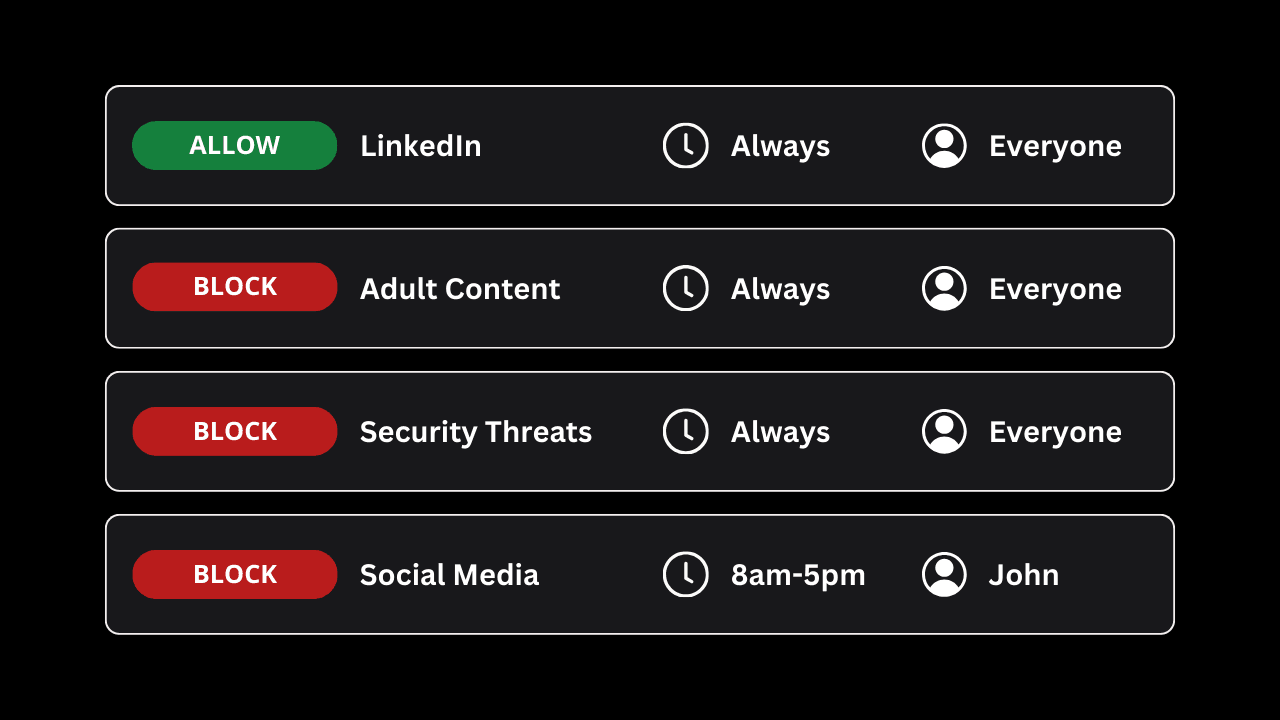
For example, Tech Lockdown allows parents or adults to block all kinds of adult content or websites that might pose a security risk.
You can customize your Content Policy with your own rules, so you can block additional kinds of websites or apps that you’d like to block.
Additionally, Tech Lockdown allows you to create a very detailed and highly customized Content Policy with Allow rules. You might use an approach that blocks the entire social media content category, but specifically allows apps that you’re able to verify don’t use in-app browsing, or apps that you’re able to set up parental controls for. For example, Instagram , Discord , and Snapchat all allow parents to link their own account to their child’s account so they can monitor and restrict some content directly in-app.
Here, I've create a rule that blocks all social media websites and apps...
...but I'll make an exception for WhatsApp, so it can be used on my own device.
This approach can be used for other kinds of apps or websites.
Option 2: Use Screen Time to block websites for some In-App Browsers
You can restrict some in-app browsers by blocking websites specifically using Screen Time. For parents, we recommend setting up Apple Family Sharing for the best results.
For adults, Screen Time can work if you have an accountability partner to help lock your Screen Time settings.
For the best results, you might also want to disable the App Store so that new apps can’t be downloaded. This prevents an app that can’t have its in-app browser from being downloaded in the future.
Can Downtime be used to block in-app browsing?
If you're a parent, you can use Downtime to restrict in-app browsing as well. Unfortunately, if you're an adult (or helping an adult set up their iPhone), Downtime isn't as practical because it can be ignored fairly easily.
Screen Time's Downtime feature automatically blocks all websites in most kinds of web browsers, and this includes most (although not all) in-app browsers. The only problem is that it's often possible to skip or ignore Downtime (especially for adults), like in the screenshot below.
Unfortunately, it's not currently possible to use Screen Time to hide this menu or truly block a website unless you block it directly via Screen Time > Content & Privacy Restrictions > App Store, Media, Web, & Games > Web Content. If a website is blocked, you would actually need to provide the Screen Time PIN to allow the website instead.
An even better approach is to fully monitor the app's activity so you can review how the in-app browser is being used, as well as other features on the app.
Option 3: Monitor Full App Activity using the LivingRoom App on an iPhone or iPad
If you’re a parent or accountability partner for an adult, another option to consider is monitoring how apps are being used. Using the LivingRoom for Families app, the entire screen is monitored, and screenshots are randomly captured so they can be reviewed later.
Screenshot monitoring is the best possible way to fully monitor an iPhone or iPad, because parents and accountability partners can see exactly what was on the screen while the device was being used.
LivingRoom also goes a step further and includes automatic nudity detection that blocks the iPhone’s internet connection if nudity is detected anywhere on the screen.