

How to Disable Spotlight Search Internet Results on Mac and iOS
Disable Spotlight Search's Internet Results on Mac and iOS completely.


Spotlight Search is a useful feature that helps find content from across your iCloud account and devices. However, it will also show internet search results (like images). While this can be a useful feature for some people, it can present a stumbling block if your goal is to completely block explicit content for yourself or for a child. Fortunately, it is possible to disable internet results that appear in Spotlight Search completely, without impacting its overall functionality.
Internet results in Spotlight Search can be accessed on both Mac and iOS devices, and it doesn't look like Apple is planning on changing this. As a result, consider following our instructions to turn off web content suggestions entirely (and make sure it stays off).
Disable Spotlight Search On iPhones and iPads
Method 1: Disable Spotlight Images with the Settings App
It's possible to disable Internet Results on most iPhone or iPad devices using the Settings app, although it isn't easy to find.
Method 2: Disable Spotlight Images with Config Files
The main problem with the above approach is that it's relatively straightforward to undo if you know what you're doing. For adults self-managing their own iPhone or parents wanting to ensure that this can't be disabled in the future, we strongly recommend additional tools that actively disable this feature without the possibility of being disabled.
A very reliable approach that we recommend instead (especially for adults restricting their own devices) is Config Files. Config Files can be created and installed onto your iPhone so that Spotlight internet results are completely disabled and can't be undone from the iPhone without outside help.
You can customize your own Config File using a tool like an Apple Config Generator included with a Tech Lockdown membership. If you're already a Tech Lockdown member, you can add a Config File with this option selected:
This Config File can then be installed onto your Supervised iPhone (this restriction will not work otherwise).
Method 3: Disable Spotlight Images with DNS filtering
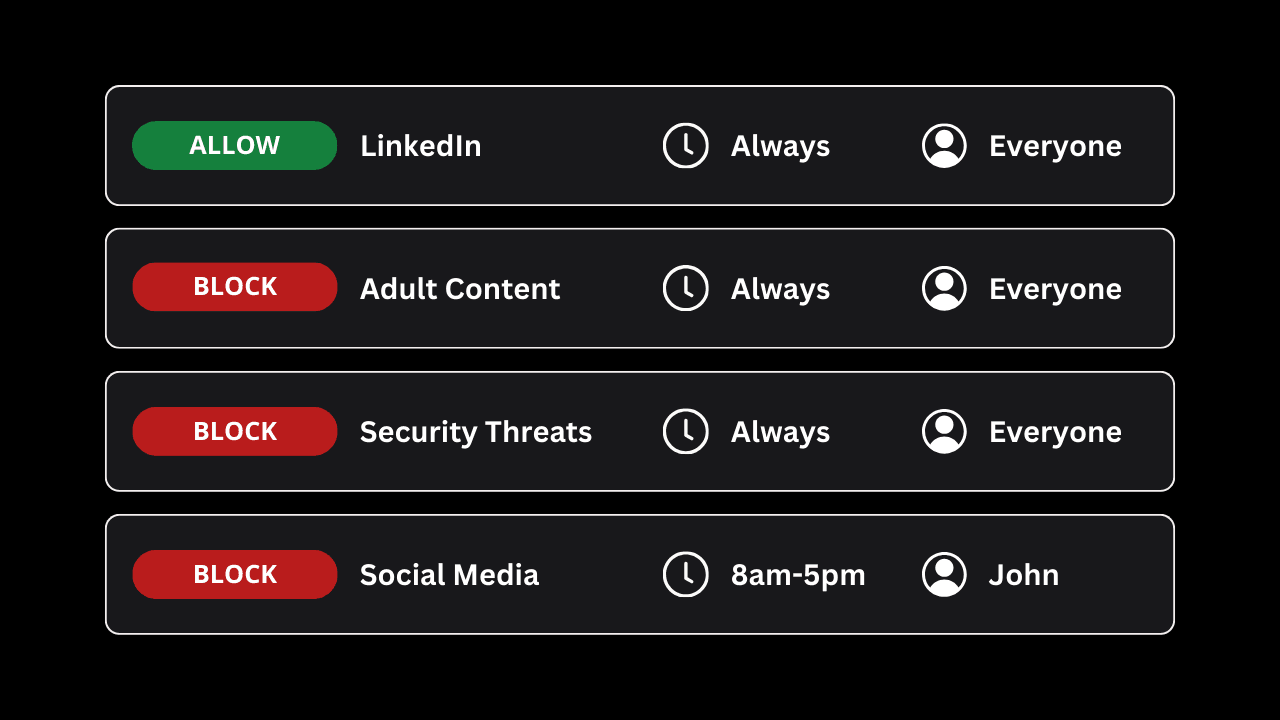
There are cases where you might not be able to use supervised mode. For example, perhaps you're setting up your router to filter content on all your devices while at home. This is where a solution like DNS filtering makes sense, because you can use it to block images without needing to enforce any restrictions on your device.
Tech Lockdown actually has a dedicated rule preset that blocks the domains that do this effectively, although you could block the domains yourself if you so choose.
Here's the domain you'd want to block if you're setting this up yourself:
cdn2.smoot.apple.com
Method 4: Using the Gertrude App
If you're a parent who uses Screen Time to help manage your child's iPhone, the Gertrude iOS app is a free app that integrates with Screen Time to help manage several bypass techniques. This includes a network filter that blocks images in Spotlight search.
Disable Spotlight Search On Mac
Method 1: Using System Settings
You can disable internet results that appear in Spotlight Search for a Mac computer by disabling Siri Suggestions.
Method 2: Using Config Files to prevent bypass
One major issue with this approach is that it's pretty easy to undo if you know what you're doing. For adults managing their own iPhone or parents who want to make sure this feature can't be re-enabled later, we highly recommend using additional tools that permanently disable this feature without any possibility of being reactivated.
The best approach we can recommend (especially for adults restricting their own devices) is Config Files. Config Files can be created and installed onto your Mac computer to enable various restrictions, including the ability to disable internet results in Spotlight without the ability to undo later. See also our dedicated guide: Blocking Google Images .
You can customize your own Config File using a tool like an Apple Config Generator included with a Tech Lockdown membership. If you're already a Tech Lockdown member, you can add a Config File with this option selected:
Method 3: Disable Spotlight Images with DNS filtering
There are cases where you might not be able to use supervised mode. For example, perhaps you're setting up your router to filter content on all your devices while at home. This is where a solution like DNS filtering makes sense, because you can use it to block images without needing to enforce any restrictions on your device.
Tech Lockdown actually has a dedicated rule preset that blocks the domains that do this effectively, although you could block the domains yourself if you so choose. This rule works best if your Mac computer is connected to the filter directly as opposed to your router only.
Here's the domain you'd want to block if you're setting this up yourself:
cdn2.smoot.apple.com