

How to Set up an iPhone with Screen Monitoring and Content Filtering
Set up an iPhone with screen accountability and content filtering.

This guide is a comprehensive walkthrough for setting up an iPhone with screen monitoring and internet-based filtering with a DNS Content Policy.
Combining screen monitoring and an internet filter on an iPhone is the most effective approach families and adults can consider for several key reasons:
- Full monitoring of the iPhone’s screen and internet activity
- Block websites and apps using multiple approaches
- Achieve a setup that is very difficult to disable (even for adults)
In this guide, I’ll walk you through how to set up Tech Lockdown’s Content Policy and the LivingRoom for Families app.
Choosing a Setup Approach
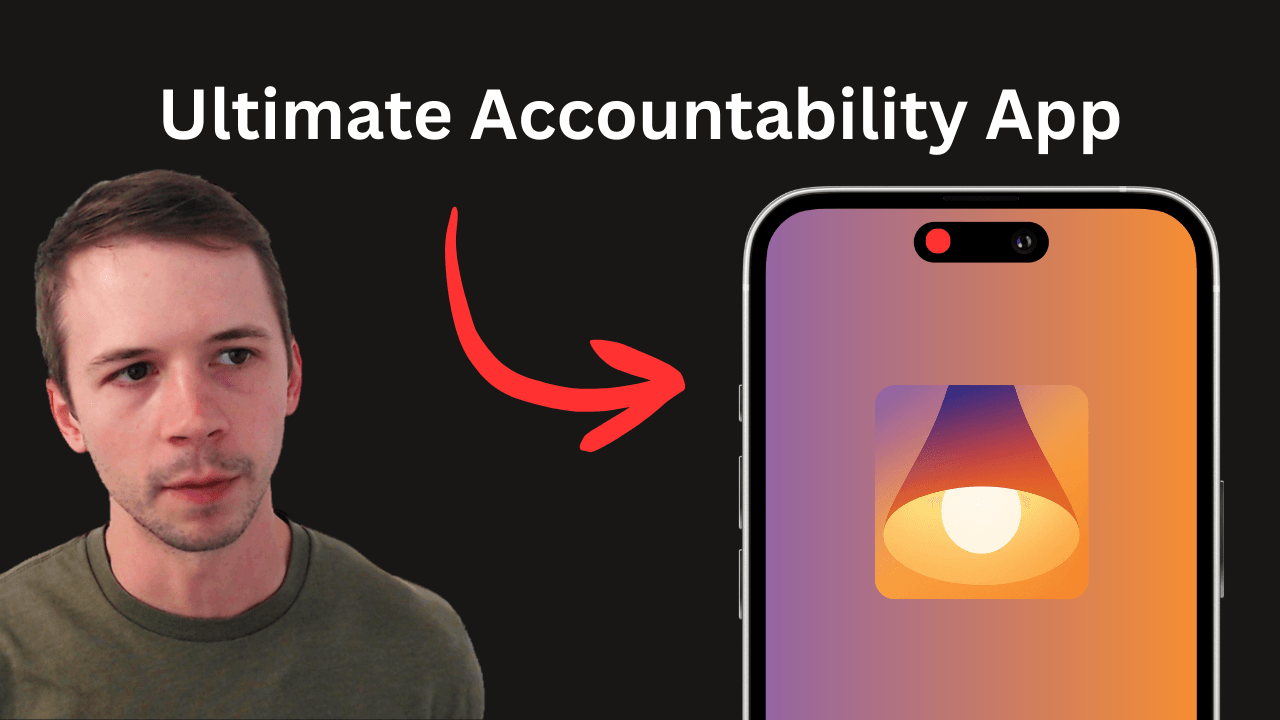
LivingRoom for Families is an app that enables parents and accountability partners to monitor the screen of an iPhone. It's very difficult to disable, and it captures activity on any app by default. It also includes automatic nudity detection that cuts off the internet, blocks the screen, and sends a notification to the admin of the account if it detects nudity has been displayed anywhere on the iPhone’s screen. See the video below for an overview of how this works:
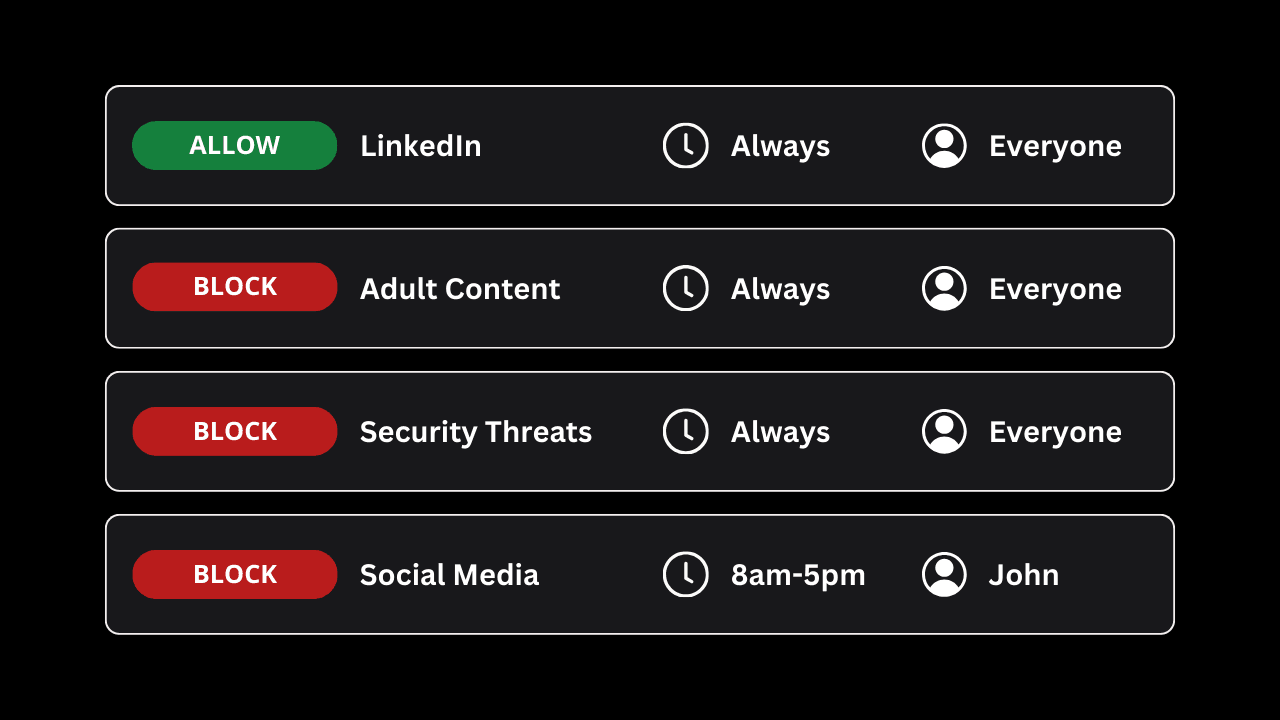
Tech Lockdown’s Content Policy is a powerful way to manage your iPhone’s internet connection. The Content Policy is used to block websites and apps based on categories of content (like nudity, security threats, social media, and many more).
Tech Lockdown also includes an Apple Config Generator that is compatible with iPhones and Mac computers. On iPhones, the Config Generator disables features that could be used to bypass filtering, blocks websites directly on Safari, blocks apps, and so much more.
With this full setup, it’s possible to block apps and websites using multiple approaches, as well as monitor internet traffic and app activity in two distinct ways.
- Apps can be blocked by Tech Lockdown’s Content Policy and the Apple Config Generator . Use the Content Policy to block internet-connected apps (and the website version of these apps), or the Config Generator to block apps from opening on your iPhone.
- Websites can be blocked by Tech Lockdown’s Content Policy and the Config Generator, too. The Config Generator blocks specific web pages using the full URL you would visit in the Safari app, whereas the Content Policy blocks the entire domain for a website
- Monitor all app and web browsing activity with LivingRoom in a comprehensive way that isn’t easy to bypass.
Step 1: Connect iPhone to Tech Lockdown
Prerequisites
If you’re not already a Tech Lockdown member, sign up for an account and access the Tech Lockdown dashboard.
After creating an account, follow the instructions on the dashboard to fully set up your Tech Lockdown account and start using the Content Policy.
Full device setup instructions can also be found on the dashboard after setting up your Tech Lockdown account. Access these for iPhones by going to Device Setup > iPhone.
Download the Supervision Tool
The Supervised Tool is required to prevent both Tech Lockdown and the LivingRoom app from being disabled. It does this by enabling Supervised Mode on your iPhone , and fortunately, it should only take about 5 minutes and doesn’t involve data loss.
Access the tool on Tech Lockdown by going to Device Setup > iPhone. Answer “No” on step one, then access the full tutorial to get set up:
It’s recommended to keep this page open in a separate tab on your device.
Supervised mode is particularly effective for adults who have full ownership over their own devices. It’s also required to use the Config Generator.
Connect iPhone to Tech Lockdown’s Content Policy
The Content Policy is how the internet is protected and managed on your devices, and your devices need to be “connected” to the Content Policy for filtering to work correctly.
On iPhones, use the Device Setup wizard to fully connect the smartphone. You will install an app called “Cloudflare One” and provide some details, then this app will set up a VPN profile that connects your iPhone.
Create and Install a Config File with the Proper Restrictions
To enforce LivingRoom after it has been installed, a Config File needs to be installed on your iPhone. Supervised mode needs to be already, and you’ll need a Tech Lockdown account to access the Config Generator:
Step 2: Get iPhone ready to use LivingRoom
Prerequisites
If you don’t already have one, create an account on LivingRoom’s website .
Before setting anything else up from LivingRoom, ensure supervised mode is enabled, and you have the required Config to enforce LivingRoom installed. Both of these steps are required for LivingRoom for Families to work and remain enforced on the iPhone.
Get Connection Code
Open the LivingRoom Admin Dashboard . These steps are the same if you’re a parent or an accountability partner for an adult.
Go to Children > Create Child. Use the name of the person whose device you are monitoring.
Download the LivingRoom for Families app
On the iPhone you’re trying to monitor, download the LivingRoom for families app by accessing this App Store link or scanning the QR Code below:
Note that you will only see this screen if supervised mode has been enabled and you’ve already installed the necessary Config File. These are both required and should not be skipped. If you don’t see this screen, try closing and reopening the app.
Step 3: Allow Tech Lockdown’s Filter to Connect to the Internet
The LivingRoom for Families app automatically blocks the internet on your device unless the screen recorder is enabled, and this does affect Tech Lockdown’s filter. Fortunately, LivingRoom can allow apps that you specify, so they aren’t blocked.
This step is very important if you plan on continuing to use Tech Lockdown.
On the iPhone you are monitoring...
Open the Settings app and go to Screen Time > Always Allowed apps. You should see a screen like the one below:
On LivingRoom’s Admin Dashboard...
Go to the Children page from the sidebar and select Settings next to the child whose iPhone you’re monitoring.
How to Use the iPhone
After first unlocking the iPhone, all apps should be blocked, and the internet is not accessible:
If you try to select an app, select the Notification that appears to open the LivingRoom app, then enable the screen recorder.
Because the screen recorder needs to be enabled directly, whoever’s using the iPhone is encouraged to use it responsibly each time.
It’s not possible to uninstall the LivingRoom app. If you try to uninstall it using the normal method, you will see an error message like the one below:
Frequently Asked Questions
Where do I go to view Screenshots captured on the iPhone?
The LivingRoom for Families app is what captures screenshots. Parents and accountability partners can view captured screenshots by logging into the LivingRoom Admin Dashboard .
Where do I go to block websites and apps?
Tech Lockdown is how apps and websites can be blocked. Parents, accountability partners, and adults can log into the Tech Lockdown dashboard to manage which websites are blocked.
The easiest way to block apps and websites is to block them using Tech Lockdown’s Content Policy . This works on apps that rely on a connection to the internet to function (like social media), and should work on any website (even if visited in an incognito mode or private browsing window).
Start by going to the Content Policy section on Tech Lockdown’s dashboard to create a new rule:
You can block websites, apps, and content categories for all devices connected to your Content Policy.
Additionally, Tech Lockdown members can also block apps with the Config Generator . This is useful if you’d like to block an app that doesn’t rely on an internet connection. You should already have a Config File saved on the Config Generator; access it by going to Apple Config Generator > iOS.
Under the Apps section, use the App Blocklist tool to find and add apps to your blocklist. Sync this config again to apply that change to your iPhone.
Where Do I Go to Monitor Website Activity on the iPhone?
Tech Lockdown’s Content Policy manages and captures internet traffic on the iPhone, so you can view your traffic logs from the Tech Lockdown dashboard to monitor this activity.
Go to the Traffic Logs section to view, filter, and search for activity.
How to Uninstall Tech Lockdown’s Filter
Tech Lockdown has both the Content Policy and the Config Generator.
On your iPhone, you can check which Config File(s) are currently installed by opening the Settings app and going to General > VPN & Device Management. You should see a config file with your email address in its title.
To remove the Config File, log into the Tech Lockdown dashboard , go to Apple Config Generator > iOS, and select the option to Uninstall. Follow the provided instructions.
To finish disconnecting your iPhone from the Content Policy, uninstall the Cloudflare One app.
How to Uninstall LivingRoom
To disable LivingRoom, the Config File that enforces it needs to be uninstalled first. You can view this config on your iPhone by opening the Settings app and going to General > VPN & Device Management. You should see a config file with your email address in its title.
This config was created using Tech Lockdown’s Config Generator. To remove it, log into the Tech Lockdown dashboard , go to Config Generator > iOS, and select the option to Uninstall. Follow the provided instructions.
You should now be able to uninstall the LivingRoom for Families app by pressing and holding on its app icon and selecting the “Remove app” option. See also our dedicated guide: Set up LivingRoom screen accountability on an Adult's iPhone or iPad. .