

How to Protect Apps with Screen Time Access on iPhone
Protect an app's screen time permissions and to prevent turning off Apps with Screen Time Access on iOS.


If you've downloaded an app from the App Store that depends on Screen Time to control app and website restrictions on an iPhone, you've probably encountered one of the biggest loopholes with Screen Time: Apps With Screen Time Access can easily be turned off, completely bypassing the app's restrictions. Fortunately, there are ways to protect Apps with Screen Time access so that their permission's can't easily be turned off.
This guide will walk you through an option that work for adults who want to prevent themselves from revoking an app's screen time permissions. Also, there are two approaches that work for parent's configuring a child's iPhone or iPad.
We also have a dedicated video available on YouTube:
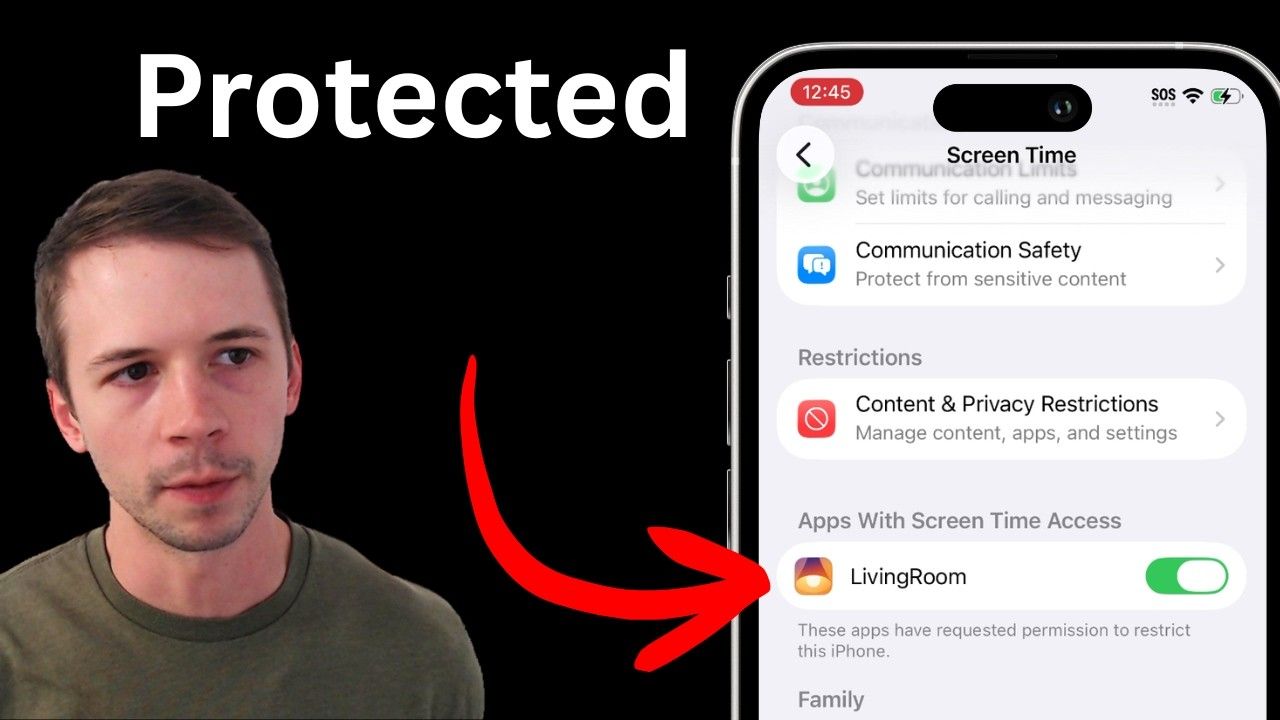
Protecting Apps with Screen Time Access using Apple Family
Protecting apps with screen time access has always been possible on a child's iPhone or iPad by using Apple Family.
If you are protecting apps with screen time access on an adult's iPhone, see the next section for an approach that works for adults.
The gist is that you use your own Apple account to manage your child’s Screen Time settings, and this means that disabling Screen Time permissions on your child's device requires the parent's Apple account sign-in.
On your child’s device, to actually disable Screen Time permissions for a given app, they need your sign-in information, so it is effectively enforced.
For example, if you've set up the LivingRoom for Families app with Apple Family, your child can't disable it without your help.
Protecting Apps with Screen Time Access without Apple Family
If you are wanting to protects apps with screen time access on an adult's iPhone or iPad, you'll need to make sure you are running the latest iOS version. In iOS 26.4, Screen Time was changed to protect app permissions behind the screen time pin.
If the iPhone has been updated to iOS version 26.4 and above, Screen Time permissions can be reliably enforced to require a Screen Time passcode instead of the iPhone's passcode or faceID.
These instructions only work if your device has been updated to version 26.4; earlier versions handle Screen Time permissions differently.
Open the Settings app and go to Screen Time. If you scroll down to the bottom, you should see a list of all apps with Screen Time permissions. You should see LivingRoom logo here.
Next, select the Lock Screen Time Settings and set a passcode.
After entering the Screen Time PIN, you will see a page that asks for a recovery email or Apple account.
If you’re an accountability partner for an adult, we recommend providing your own email/Apple account details here. On the other hand, if you’re managing your own device, you can skip this step by dragging down on the menu on your screen and confirming that you’d like to skip.
Lastly, to actually enforce Screen Time, select Content & Privacy Restrictions and ensure that this has been enabled. By default, it will look like this:
Ensure that this is enabled, and provide your Screen Time Pin when prompted. It should now look like this:
You should now be able to check that Apps with Screen Time access are protected behind the screen time pin.
Frequently Asked Questions
Prevent Share Across Devices loophole
Near the bottom of the Screen Time page, you might have noticed a setting called “Share Across Devices”. We strongly recommend that this be turned off, because if it’s enabled, Content & Privacy Restrictions can be turned off.
Share Across Devices should be disabled by default, but it will be enabled if you turn on App & Website Activity. Your Screen Time passcode is required both to turn on and off this option.
How to disable Screen Time Permissions
Regardless of whether you’re a parent or an accountability partner for an adult, you can disable Screen Time permissions on the iPhone in question like this:
- Open the Settings app and go to Screen Time.
- Find the LivingRoom app under Apps with Screen Time Access
- Toggle off access for the LivingRoom app
- Follow the instructions on the iPhone
Parents need to provide their own Apple account details to unlock Screen Time for their child.
Accountability partners need to enter the original Screen Time passcode they originally set to lock those settings. See also our dedicated guide: How to Block Apps on iPhone without Disabling the App Store .