

iOS 26.4 Update: "Apps with Screen Time access" are gated behind a passcode instead of FaceID
In iOS version 26.4, Apple has introduced changes to Screen Time that make it possible to enforce Screen Time permissions for apps, such as website blockers, app blockers, and accountability apps.


If you're an adult who has downloaded an app blocker, website blocker, or accountability app from the app store that depends on Screen Time, it was previously simple to bypass the app by turning off the app's screen time permissions.
With the latest iOS 26.4 release, Apple has changed the Apps with screen time access behavior to gate revoking an app's screen time permissions behind the screen time pin instead of the iPhone's pin or faceID. Now, screenshot-based accountability apps like LivingRoom for Families can be properly enforced on an adult's iPhone.
In our testing, we noticed that this option isn't "plug and play" - some configuration is required to gate apps with screen time access behind the screen time pin. Continue with the guide, or watch our YouTube video on the update below:
Old vs New Approach to Screen Time Permissions
Some apps, especially app blockers or parental control apps, require Screen Time permissions to work properly. For example, the LivingRoom for Families screenshot accountability app for iPhone requires Screen Time to enforce itself and prevent users from deleting the app.
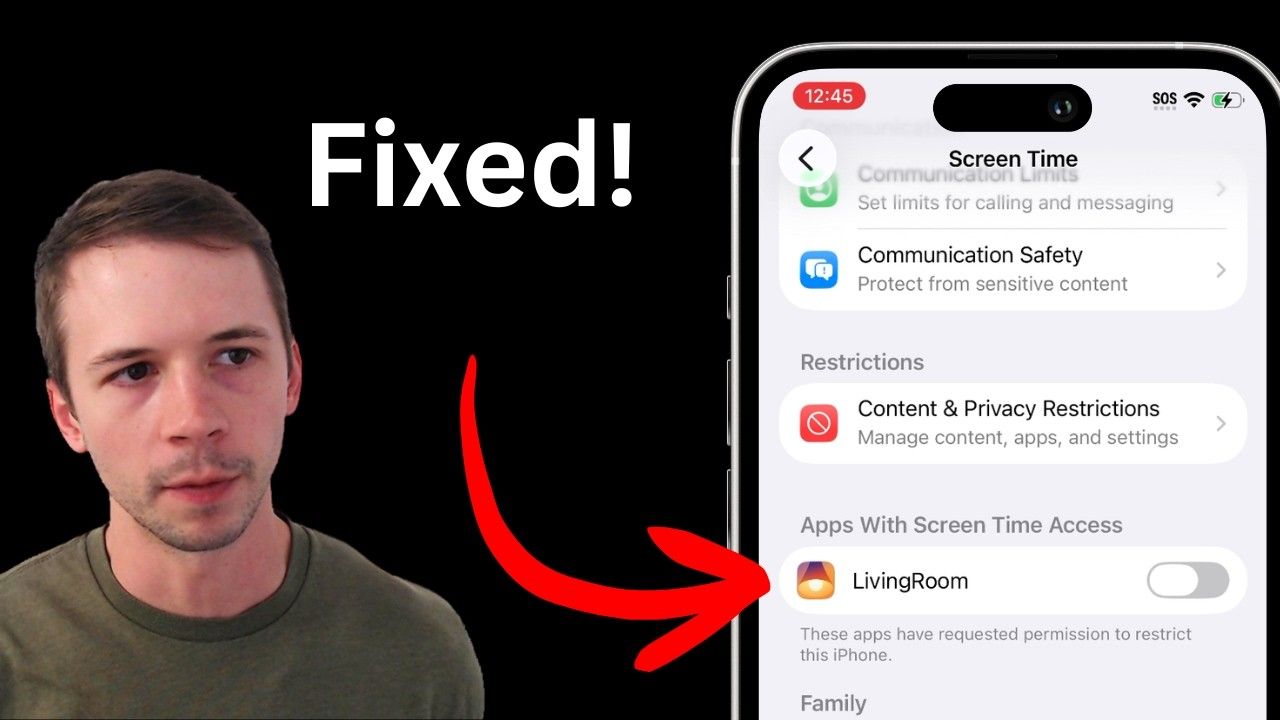
When LivingRoom is set up, you'll see it listed under Apps With Screen Time Access within Screen Time:
On iOS 26.3 and earlier versions, it was previously possible to turn off these Screen Time permissions unless you were using Apple Family on a child's iPhone or iPad. This is one of the ways that kids could bypass screen time .
Previously, selecting the Screen Time permission toggle for the app would always disable it, even if you had set up a Screen Time passcode. You'd be asked to enter your iPhone's PIN instead or use FaceID.
The obvious problem with this is that an adult couldn't enforce screen time apps for themselves, even with the help of an accountability partner. The adult could easily turn off screen time permissions for the app by scanning their own face or using their phone's passcode.
However, in iOS 26.4, it's now possible to protect apps with screen time access on an adult's iPhone . To disable Screen Time permissions, an adult can now be required to enter the Screen Time pin.
This is not enabled by default, but it's relatively straightforward to enable.
How it Works
Protecting Apps With Screen Time access behind the screen time passcode (set with Lock Screen Time Settings) only works on iPhones or iPads that are on iOS version 26.4 and later. Older versions of iOS and iPadOS don't have this option.
In this example, we're going to protect the LivingRoom app's screen time permissions so that the screen time passcode must be entered to disable them.
First, Screen Time settings must be locked (if not already locked).
Second, Content & Privacy Restrictions must be enabled.
You should now be able to check that Apps with Screen Time access are protected behind the screen time pin.
What else has changed for Screen Time in version 26.4?
In addition to a new approach to enforcing screen time permissions, you might notice some other changes to screen time with iOS 26 .
Your passcode is required to make any changes to Screen Time, not just undoing them
You might have noticed, if you followed the instructions above, that iOS now requires you to enter your passcode to both enable and disable most Content & Privacy settings. This could present some challenges to accountability setups, because now, accountability partners need to have physical access to the iPhone/iPad to make any change.
This is a bit less problematic for parents, since they can remotely manage their child’s Screen Time settings with Family Sharing.
We strongly recommend turning off Share Across Devices
Near the bottom of the Screen Time page, you might have noticed a setting called “Share Across Devices”. We strongly recommend that this be turned off, because if it’s enabled, Content & Privacy Restrictions can be turned off.
Share Across Devices should be disabled by default, but it will be enabled if you turn on App & Website Activity. Your Screen Time passcode is required both to turn on and off this option. See also our dedicated guide: How to Block Apps on iPhone without Disabling the App Store .