What are In-App Browsers on iPhones and iPads?


A common question parents ask us while setting up an iPhone for their child is how to block the in-app or the pop-up browser window that some apps use instead of opening Safari. These in-app browsers often present a unique challenge to both parents and adults, because it’s often not possible to use Screen Time to block websites that might be opened using this method.
Unfortunately, it’s not currently possible to completely disable every type of in-app browser, but parents and accountability partners can consider alternative strategies outside of Screen Time.
From our own research, there are two main types of “In-App Browsers”:
- “Pop-up” Safari windows that appear when you tap on a link in some apps.
- A fully managed and contained web browser that exists within the app itself. This is especially common on social media apps
If you’re using Screen Time to block websites on the iPhone, you’ll likely notice that most of the pop-up-style or preview windows for a link will also be blocked. However, this isn’t true for apps that have their own contained web browser, so you’ll need to consider additional ways to block these in-app browsers or web links directly instead.
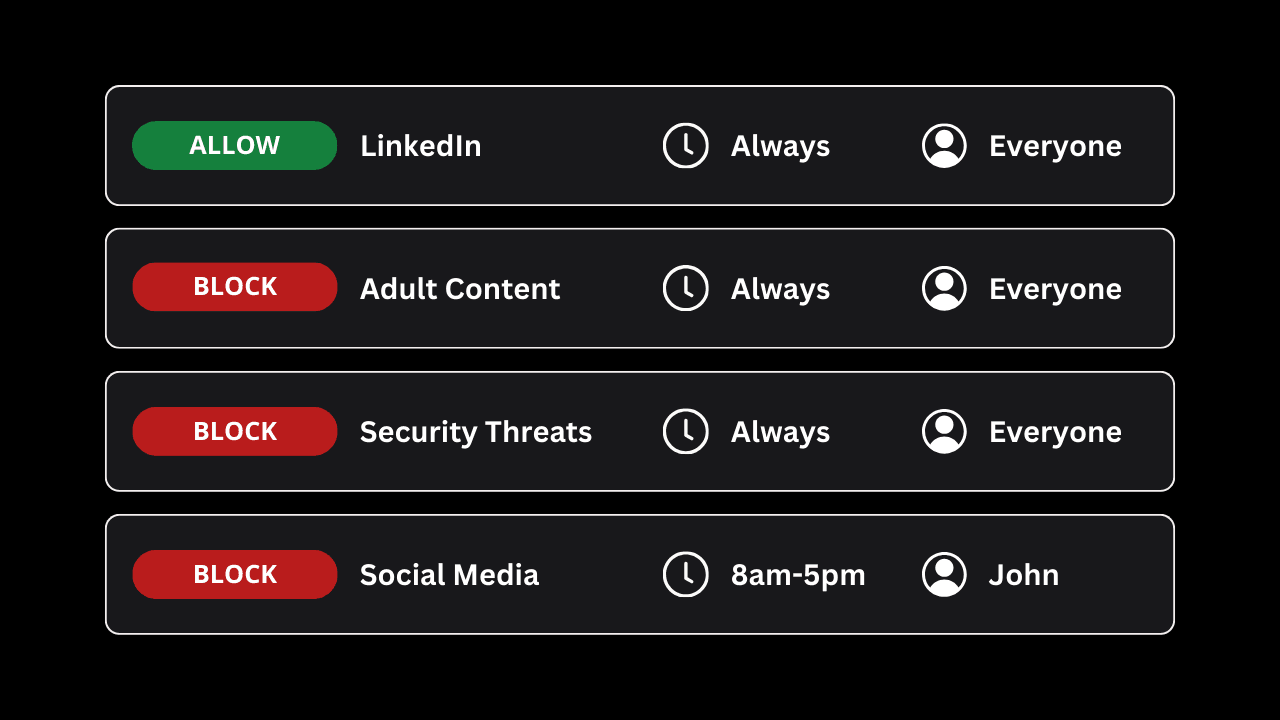
If you’re using Tech Lockdown’s Content Policy , it’s much more effective to block adult content and security threats, to directly block the kinds of websites that you’re trying to prevent being used.
Parents and accountability partners can use the Activity tab to see DNS logs from connected devices, and this includes any website visited while using an in-app browser. This is similar to how activity can be collected while using an incognito mode or private browser window.
Similarly, the LivingRoom for Families app captures in-app browser activity because it captures screenshots of the entire iPhone’s screen. Parents (or accountability partners for adults) can review this activity later and determine if more steps are needed to restrict a given app.
Additionally, since LivingRoom requires whoever is using the iPhone to manually enable the screen recorder each time they use the device, they are more likely to avoid risky behavior. They’re reminded that everything they do or look at is being monitored.