Kids use these Apple Features to Bypass Screen Time
Parents with children who use iPhones often ask what the common loopholes are that they need to consider.


Chances are, if you’re a parent who’s using Screen Time to monitor your child’s devices and block access to sensitive content, you’ve wondered if it’s possible for Screen Time restrictions to be bypassed. Even if you’ve set up Apple Family Sharing to manage your child’s Screen Time remotely, it’s not a perfect system.
For many parents using Screen Time, your concern probably isn’t that your child could disable Screen Time (or even leave your Family Group), but that they might use their iPhone or iPad in a way that you might not have expected.
Choosing an iPhone Monitoring Approach
A common step parents might take when setting up Screen Time is to remove or block apps that might not be the best idea to keep around.
For example, if a child uses a web browser like Google Chrome or Firefox, a parent can only see how much total time their child has spent on the app. If the child was using Safari instead, parents are actually able to see website activity as well, so many parents choose to take steps to block non-Safari web browsers.
However, what if there are features that are built into iOS that are difficult (or impossible) to disable using Screen Time restrictions? Screen Time can’t fully supervise an iPhone, and not all features can be restricted by a parent.
This is where it’s often much more effective to consider alternative approaches to monitoring a child's iPhone . For example, the LivingRoom for Families uses screen monitoring combined with an internet cutoff to ensure all apps and activities can be reviewed by parents later.
Screen Time loopholes that kids use to access inappropriate content
(1) Gifs in iMessage
We have a video that explains the problem in more detail:
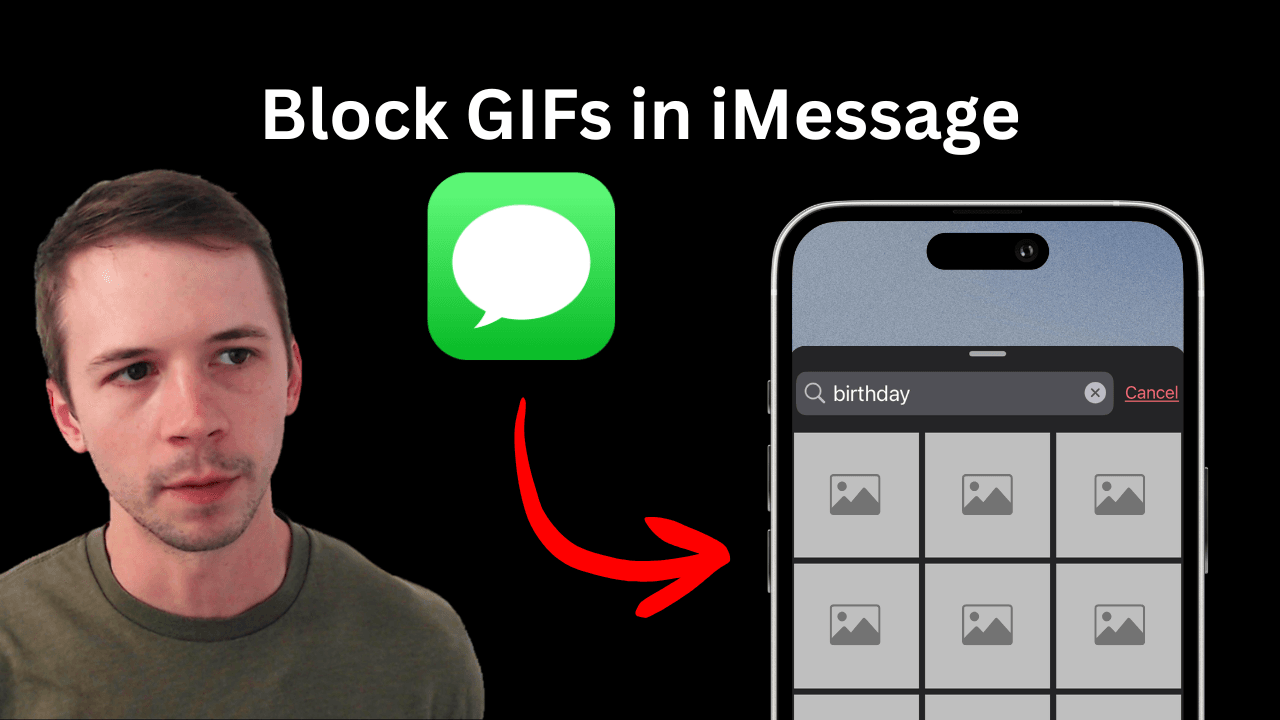
If you’re an avid Apple user, you’re probably familiar with #images feature on iMessage.
It’s possible to search for GIFs that many parents would consider inappropriate or “racy”. While it’s not possible with Screen Time, it's also possible to officially block GIFs in iMessage .
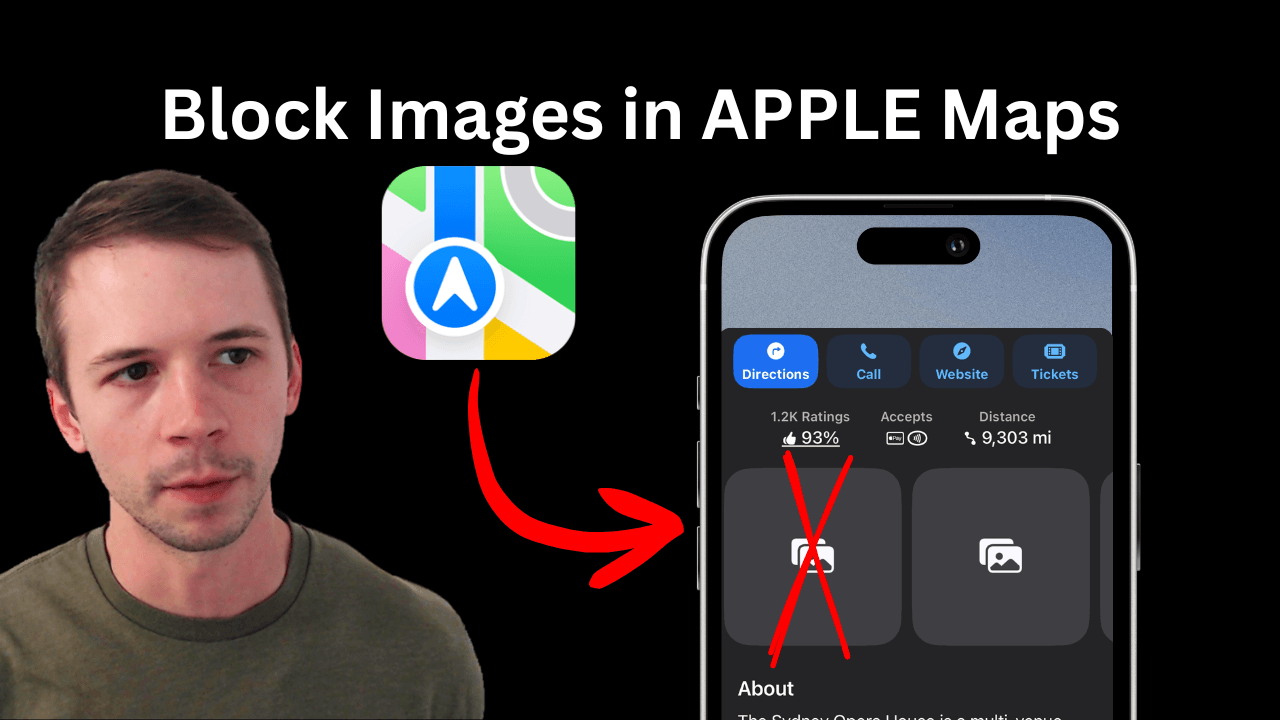
(2) Images on Apple Maps (and Google Maps)
Apple Maps doesn’t have the same level of controls available for parents compared to an app like Safari, and it’s often not practical for parents to completely block Apple Maps. Not all locations are family-friendly, but it’s fortunately possible to block images on Apple Maps without completely blocking the app entirely.
(3) Image results on Spotlight search
You might be familiar with the Spotlight search feature on iOS and how it can be used to open apps or search the internet. Unfortunately, even if you’ve blocked adult content with Screen Time, Spotlight search results often include inappropriate images that might not be filtered out correctly.
Fortunately for parents, images can be blocked in Spotlight search without disabling the feature entirely. Here’s what this would look like:
(4) Safari Web Browser
While you might block apps directly using Screen Time, it’s often possible to use the website version of the app in Safari instead.
Fortunately, parents are able to see which websites were visited if they’re able to monitor their child’s iPhone correctly, and we recommend using both Screen Time and screen monitoring for the best results.
(5) Viewing Links through text messages or messaging apps
Some messaging apps (like Discord or even Gmail) have a built-in version of a web browser that opens by default if your child is sent a link. This can allow a website to be opened even if Safari is blocked.
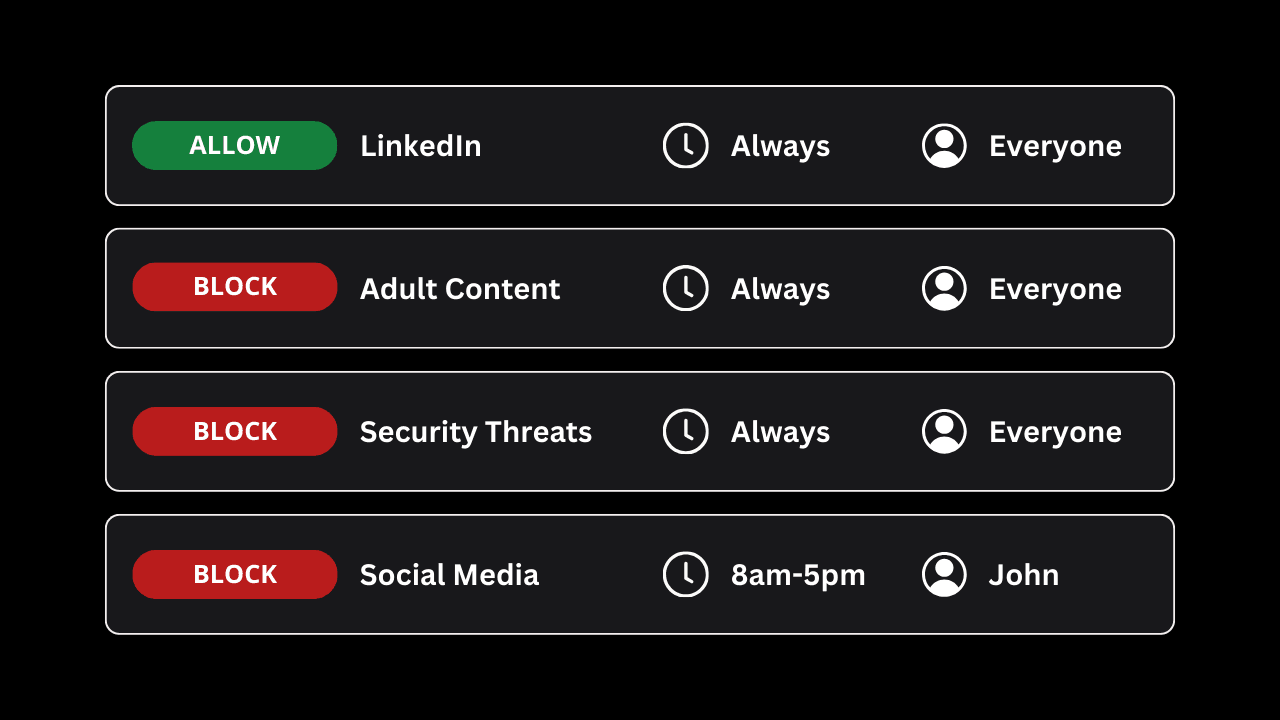
Parents often have to block these websites individually, which is often difficult to do and doesn’t always work in these kinds of built-in browsers. If you’re trying to block something like adult content or security threats, you often have to consider thousands or millions of websites that are just not practical to block in one giant list.
A more effective approach is to use DNS-based filtering on your child’s iPhone, because the website can be blocked before your child’s device has a chance to load it correctly. Your child’s device would show them an error message, or even better yet, a block page that tells them why the website was blocked.
If you’re using Tech Lockdown’s DNS Content Policy , you can block an entire category of apps or websites without needing to maintain your own list of websites or domains. Even better yet, you can enable filtering on your home’s Wi-Fi network to block this content on your devices while at home. See also our dedicated guide: Monitor a child's text messages on iPhone .