

Set up effective parental controls for ChatGPT on a child's iPhone
Setting up effective ChatGPT parental controls on an iPhone is possible, but it requires a multi-layered approach instead of depending completely on OpenAi's family controls.


The dynamic nature of ChatGPT poses a serious challenge for parents who are managing a child's iPhone or iPad. ChatGPT doesn't just answer questions and suggest websites like a search engine, it can build mini apps on the fly, generate images, voice chat like a real person, and suggest websites to your child like a search engine. Setting up effective ChatGPT parental controls on an iPhone is possible, but it requires a multi-layered approach instead of depending completely on OpenAi's family controls.
A parent who relies on ChatGPT's controls alone is likely operating with a false sense of security. In this guide, we'll show you exactly how to set up effective parental controls for ChatGPT on an iPhone to significantly reduce the risk posed to your child.
Choosing an Effective Parental Controls Approach for ChatGPT on iPhone
AI chatbots are a new layer on top of parental control challenges like disappearing messaging apps, social-media, and gaming with apps like Snapchat , Instagram , and Roblox . Similarly, even though ChatGPT has built-in parental controls, it's important to account for the numerous gaps that exist from a content control and monitoring perspective.
Four gaps are clear when we examine OpenAI's parental controls for ChatGPT:
- Parents cannot see chat sessions. OpenAI's parental controls let a parent adjust content settings on a linked teen account, but they do not share the actual transcripts of what a child types or what ChatGPT replies. Whether the child is discussing homework, relationships, mental health, it is all invisible to the parent even when using their parental controls.
- The web browser is a wide-open back door. ChatGPT's parental controls only apply when a child is signed in to the linked teen account inside the official app. A child can open Safari, navigate to chatgpt.com, and use the service signed-out or signed-in to a different account that isn't part of the family. The parent's settings simply do not apply in that case.
- Wrapper apps bypass parental controls. The App Store is full of "AI assistant" apps. Many of them simply use ChatGPT under the hood, but have no relationship to OpenAI's family account system at all. A child can install one and chat freely without parental oversight.
ChatGPT's parental controls should be treated as one layer of a parental control system, not as the safety net itself. A reasonable approach for an iPhone household combines the official controls with an iPhone screen monitoring app , Screen Time configuration to close off common loopholes, and a DNS content policy to narrow AI chatbot access to an approved list of apps like ChatGPT.
Step 1: Set up ChatGPT Parental Controls
According to OpenAI's help center , ChatGPT's parental controls are configured by linking a parent and a teen account through an email invitation. Once linked, the parent can adjust content reduction settings on the teen's account, restrict image generation and voice mode, disable memory, and turn off model training on the teen's conversations. Quiet hours and contact controls are also available.
Each of these controls is genuinely useful, and parents should turn them on, but here's what gets left out:
- Parents cannot read chats: the chat content is private to the teen's account, similar to how the message body of WhatsApp's encrypted conversations is invisible to anyone outside the chat.
- No enforcement outside the linked account. If a child accesses ChatGPT in Safari or through a different app, parental controls are completely bypassed.
- No coverage of other AI services. Gemini, Claude, Character.AI, Replika, Pi, Snapchat's My AI, and the rest of the AI-chatbot ecosystem are completely outside OpenAI's family system.
In short, ChatGPT's parental controls reduce risk inside one app, on one account, on one device, when everyone cooperates. The other layers below close the gaps.
Step 2: Block ChatGPT wrapper apps to restrict usage to the official app
The biggest loophole in the ChatGPT parental control system on iPhone is the wide availability of ChatGPT "wrapper" apps that can be downloaded from the App Store or accessed in the browser.
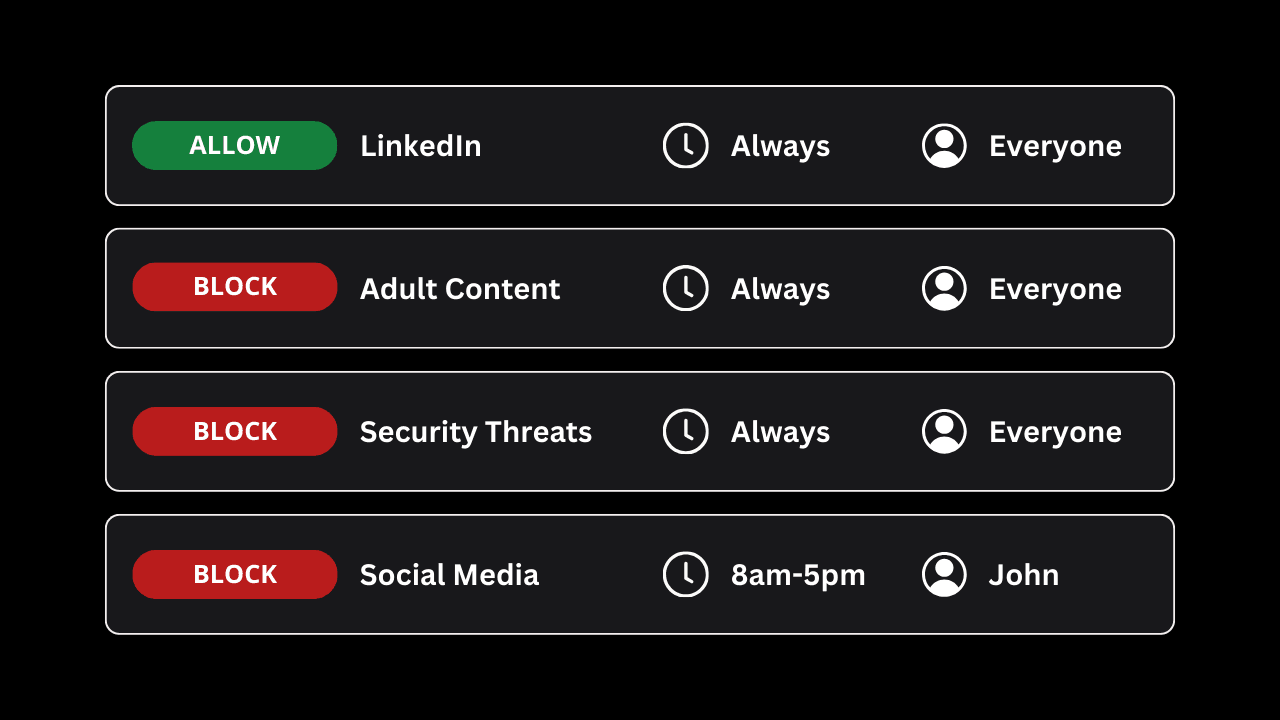
To get started, it's important to limit the pool of available AI chat apps to only ChatGPT. The best way to do this is using a "default-deny" blocking approach.
If you're using Tech Lockdown's DNS Content Policy , you would do the following:
The effect of this is that even if a ChatGPT wrapper application is downloaded from the App Store, it won't be able to connect to the internet. This saves you from having to maintain a massive list of AI websites that you need to block (an impossible task). Then, only ChatGPT is unblocked and you can narrow the scope of use to the app where a child must be signed in.
Step 3: Block ChatGPT in Safari
ChatGPT's parental controls only apply when a child uses the official app while signed in to the linked teen account. A child who opens Safari and goes to chatgpt.com can chat with no parental settings applied at all by either signed-out, or signed-in to a personal account the parent has never heard of.
The fix is to use Screen Time to block the ChatGPT website in every browser on the iPhone. The same technique used to block websites on Safari on a child's iPhone applies here:
- Open Screen Time, then go to Content & Privacy Restrictions > Web Content > Limit Adult Websites, and add `chatgpt.com` to the Never Allow list.
- Apple's web content restrictions apply across Safari and other browsers that respect them, so this single block forces the child back into the official ChatGPT app where the family link applies.
As you can probably imagine, it's quite difficult to identify every AI web address that should be added to this blocklist. Fortunately, if you're using the "default deny" blocking approach with the DNS Content Policy , you don't need to worry about entering every AI chat website address here. You only need to block chatgpt.com so that a child has to use the official ChatGPT app instead of accessing it in Safari.
Step 4: Monitor ChatGPT conversations with your child using the LivingRoom App on iOS
The single biggest gap in ChatGPT's parental controls is that parents cannot see what their child is actually saying or seeing in a chat session.
The LivingRoom for Families app is built for exactly this. It takes periodic screenshots on a child's iPhone or iPad and shows them to the parent, regardless of which app is on screen.
That means a parent can see ChatGPT conversations whether the child is using the official ChatGPT app, chatgpt.com in Safari, a third-party wrapper from the App Store, a Discord bot, or a competing AI service like Gemini or Character.AI. Anything visible on the screen ends up in the LivingRoom screenshot-based monitoring feed.
This is the only method in this guide that survives every bypass scenario.
Frequently asked questions
Block ChatGPT Wrapper Apps from being downloaded from the App Store
In addition to using a DNS Content Policy to easily block millions of ChatGPT wrapper apps, you may also want to prevent them from being downloaded from the App Store. Fortunately, even if these apps are downloaded, the DNS policy prevents them from connecting to the internet, so they won't be able to function. However, just to be on the safe side, we still recommend being very careful with what apps are installed from the App Store on a child's iPhone or iPad.
There are a few ways to address this on an iPhone:
- Require parental approval for every install. Apple's Ask to Buy feature routes every App Store download (free or paid) to a parent's device for approval before it installs. This gives parents a continuous view of what's being added and a chance to vet anything that looks AI-related. See the dedicated guide on how to enable Ask to Buy on a child's iPhone.
- Block apps directly with Screen Time. A more aggressive approach is to block specific apps on a kid's iPhone using Screen Time's app limits and allowed-apps controls. This is useful for known AI chatbots where parents want a hard block rather than a one-time approval.
- Remove the App Store entirely. For younger children, parents can remove the App Store from a child's iPhone so that no new apps can be added at all without lifting the restriction. This is the most restrictive option but also the cleanest.
Block inappropriate website suggestions from ChatGPT
There is one more category of risk that none of the layers above address: ChatGPT can recommend websites to a child, and those recommendations sit outside Google SafeSearch and any other search-engine filter the parent has set up. A child who asks ChatGPT for "websites about X" can be handed direct links to destinations that a search engine would have filtered out, and clicking those links opens the destination in Safari or another browser regardless of what content settings ChatGPT is operating under.
A DNS content policy closes this gap by enforcing the filter at the network layer, before any browser even loads the page. The Tech Lockdown DNS content policy is designed for this. Parents can enforce a DNS-level content filter on an iPhone so that adult, gambling, violent, and other category-blocked sites simply don't load when a child tries to visit them in a browser after clicking a suggestion from ChatGPT. It doesn't matter whether the link came from ChatGPT, a Discord message, a Google search, or a friend's text. The site won't load.
This is the layer that catches everything the others miss. ChatGPT can suggest a URL, a wrapper app can render it, a child can paste it into Safari — and a DNS policy still blocks it.
Can I see my child's ChatGPT chat history through OpenAI's parental controls?
No. OpenAI's parental controls let a parent adjust content settings, restrict features, and set quiet hours on a linked teen account, but they do not give the parent access to the actual chat transcripts. To see what a child is typing into ChatGPT and what ChatGPT replies, parents need a device-level monitoring tool that captures the screen — not an account-level setting on the OpenAI side.
Can my child opt out of ChatGPT's parental controls?
Yes. The family link is a voluntary connection between two ChatGPT accounts, and a child can disconnect at any time. Even if they don't disconnect, they can sign out of the linked account and sign into a different ChatGPT account — or use the service signed-out — and OpenAI's parental controls won't apply.
Do ChatGPT's parental controls cover the chatgpt.com website in Safari?
Only if the child is signed into the linked teen account when they visit. A child who goes to chatgpt.com signed-out, or signed-in to a personal account the parent doesn't know about, isn't subject to any of the family settings. This is why blocking the website in Safari is an important part of the iPhone setup.
What about other AI chatbots like Character.AI, Replika, or Gemini?
OpenAI's family controls only apply to ChatGPT. Every other AI chatbot has its own parental control story — usually weaker, sometimes nonexistent. The same multi-layer approach in this guide applies: block the apps and domains explicitly, monitor at the device level, and let a DNS content policy catch the rest. Parents specifically concerned about browser-based AI features should also see the guide on disabling AI features in web browsers .
Can I block ChatGPT entirely on my child's iPhone?
Yes. Combining Screen Time app blocking (for the ChatGPT app itself) with website blocking (for chatgpt.com and related domains in Safari) effectively removes ChatGPT from the iPhone. The wrapper-app concern still applies — parents should pair this with Ask to Buy or App Store restrictions so a child can't simply install a different chatbot in its place.
Does the LivingRoom app capture AI chats from any app or browser?
Yes. LivingRoom monitors at the device level by taking periodic screenshots, so it captures whatever is on screen — ChatGPT in the official app, chatgpt.com in Safari, Character.AI or Replika or any other chatbot, even AI features built into other apps. This is what makes it useful as the catch-all monitoring layer when individual app-level controls don't.