How to Disable the Radio Feature in Apple Music on iPhone
Completely disable the Radio feature in Apple Music on iPhone so that only media in the library can be played.

If you’ve used the Apple Music app on an iPhone, you might have realized that Apple’s Radio feature is not always family-friendly and could be problematic for some people. Fortunately, it's possible to completely disable Radio so that the Apple Music app can only be used to play media in your library on an iPhone or iPad.
Apple Music's radio feature is just one of the many things you might want to consider disabling if your goal is to block explicit content in Apple Music .
If you’re a parent setting up a child’s iPhone, restricting Radio ensures that a child only plays tracks in the iPhone's library that you've curated.
We'll go through three options for completely blocking radio in Apple Music on iPhone:
- Disabling Apple Radio by blocking the associated web addresses
- Using Supervised Mode to disable Apple Radio without requiring the use of an app or Screen Time.
- Using Apple's parental controls to restrict Apple Radio content
Block the Web Addresses Apple Music uses to provide its Radio Feature
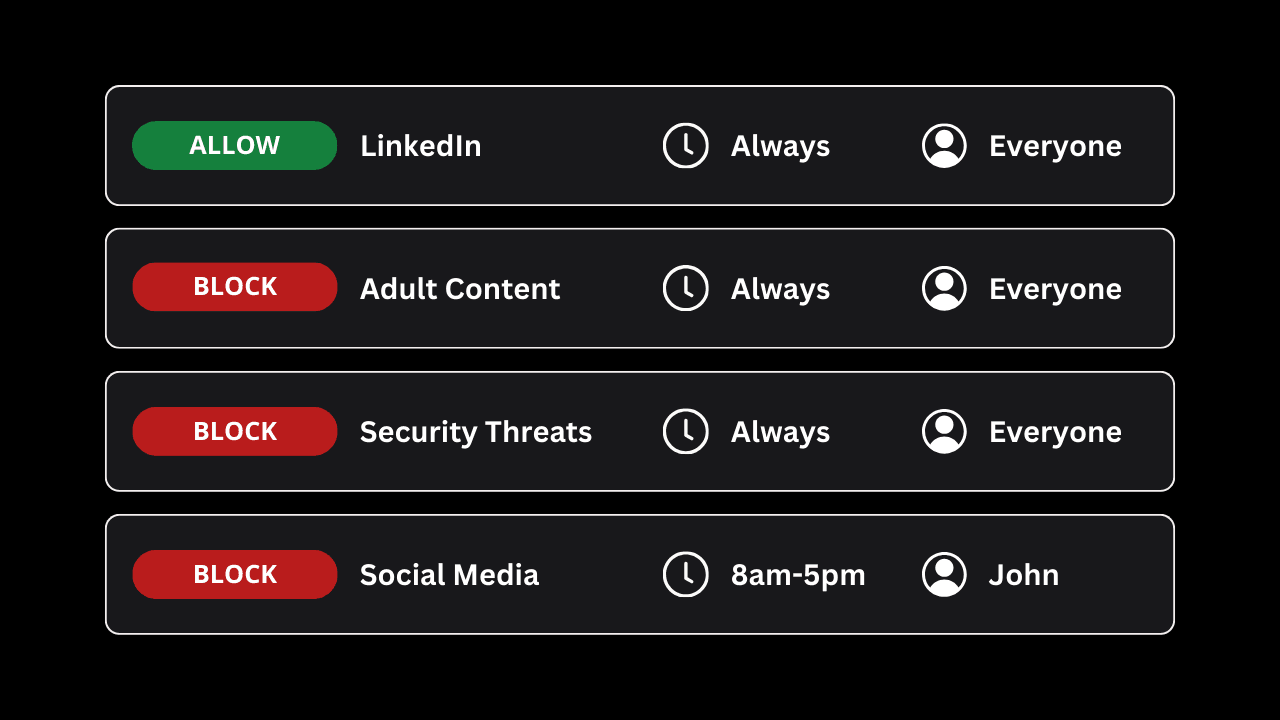
Instead of blocking the Apple Music app entirely, you can block the web addresses Apple Music uses to find and play music in the radio player. You have to be careful not to block all music from being played at all, but this is possible if you use DNS-based filtering to block the specific web addresses below.
For example, customize Tech Lockdown’s DNS Policy , block these domains:
radio.itunes.apple.com
liveradio.music.apple.com
If done correctly, Apple Music should play music like normal; however, the Radio feature just won’t work:
Disable Apple Radio with Supervised Config Files
It is possible to completely disable the Radio feature in the Apple Music app without needing to block specific web addresses, but it requires a specific kind of setup.
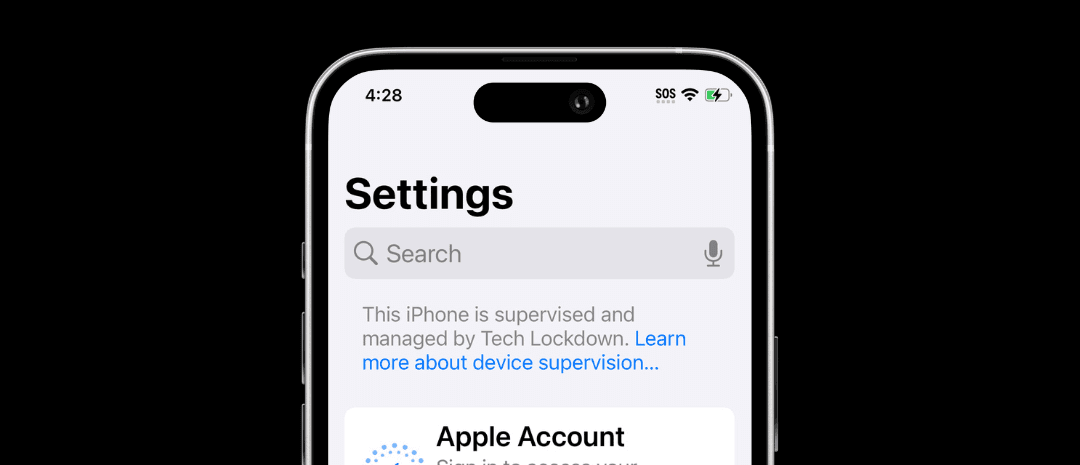
You can unlock advanced restrictions on your iPhone using Tech Lockdown's Supervised Mode tool .
Then, use Tech Lockdown’s Apple Config Generator , to customize restrictions you'd like to enforce on an iPhone, like disabling Apple Radio.
Here's what Apple Music looks like after the restriction is applied:
Supervised mode is a powerful alternative to Screen Time that is a better fit for adults who normally have full access to their own iPhone and Apple account.
Because it’s more comprehensive and difficult to disable compared to Screen Time, it requires some basic setup on your iPhone first. See our dedicated guide for enabling supervised mode to learn more.
Using Apple's Parental Controls to Disable Apple Radio
Surprisingly, Apple's built-in parental controls (Screen Time/Apple Family) does not provide an option to completely disable Radio in the Apple Music app. Instead, you'll need to block explicit content in the Apple Music app and turn off certain features.
This can be frustrating for some parents, who would rather turn off Radio entirely.
If you've followed our parent's guide to setting up a child's iPhone with parental controls , you're already in a good position to customize Apple Radio for your child.